To interact with decentralized applications and assets on Rootstock, users need to connect their wallet to the Rootstock network. **MetaMask** does not include Rootstock by default, so it must be added manually or through supported integrations.
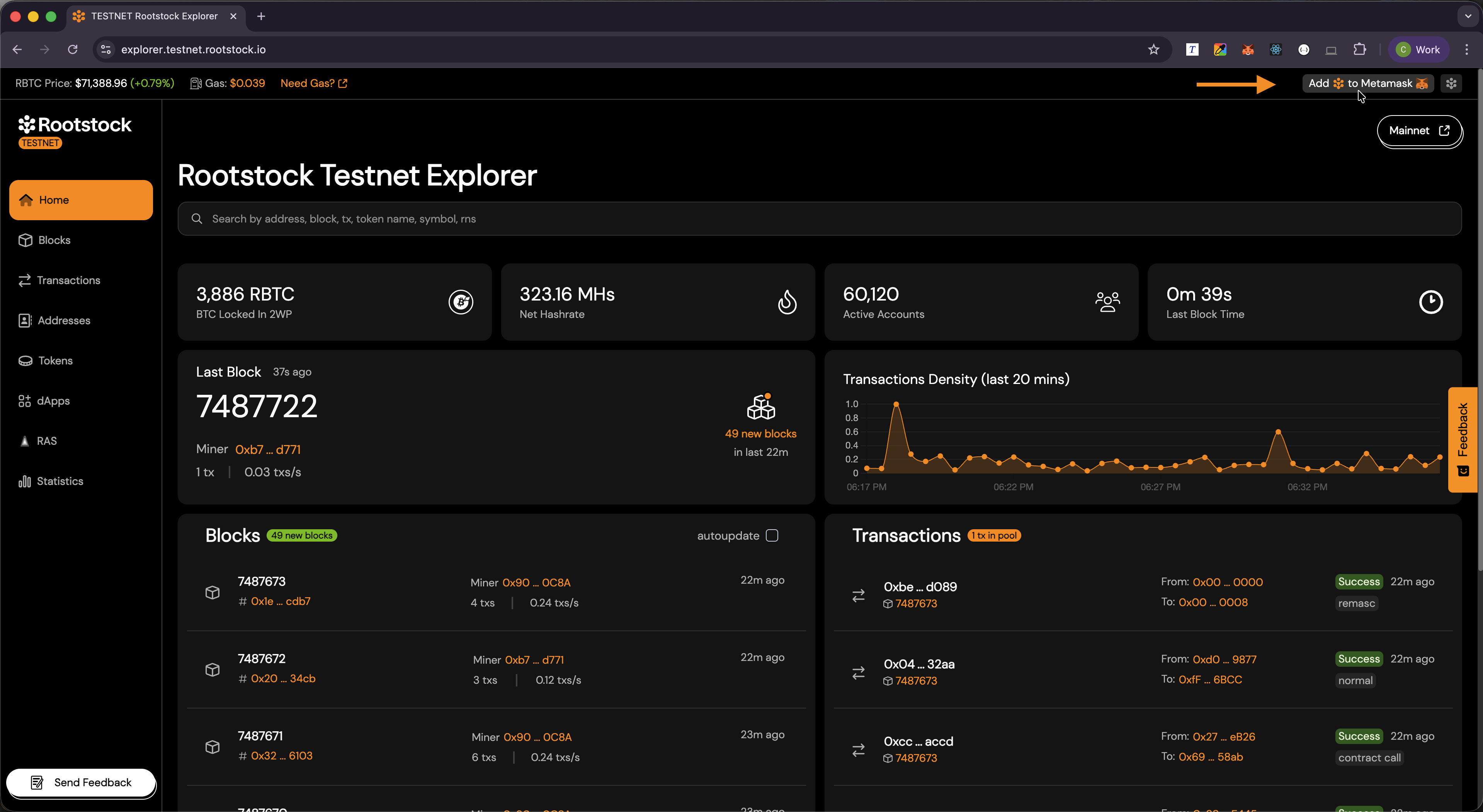
The Rootstock Explorer provides a quick way to add the network using the **Add Rootstock to MetaMask** feature.
## Why Connect MetaMask to Rootstock?
Connecting MetaMask to Rootstock allows you to:
- Send and receive RBTC.
- Interact with smart contracts and applications.
- View transactions and balances on the Rootstock network.
## What MetaMask Needs for a Network
MetaMask supports multiple blockchain networks including Rootstock. Each network requires specific configuration details, such as:
- **Network name**.
- **RPC URL**.
- **Chain ID**.
- **Currency symbol** (RBTC on Rootstock).
The Rootstock Explorer simplifies this process by automatically providing these details when adding the network.
## Add Rootstock to MetaMask
1. Open the [Rootstock Explorer Mainnet](https://explorer.rootstock.io/) or [Rootstock Explorer Testnet](https://explorer.testnet.rootstock.io/). Use the same network in the explorer that you want in MetaMask.
2. Find **Add Rootstock to MetaMask** in the explorer UI (in the top bar).
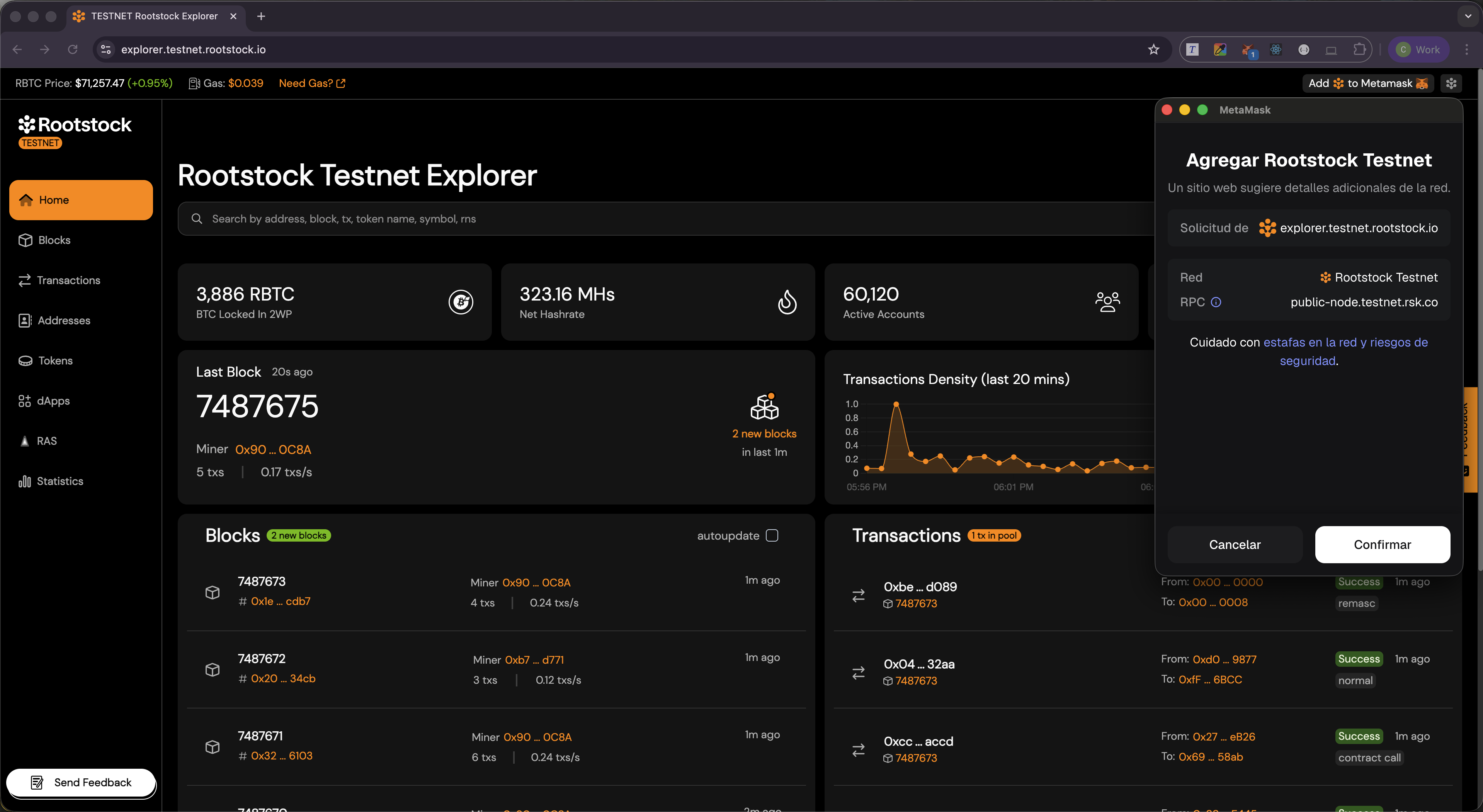
3. MetaMask will open and display a network configuration prompt.
## Confirm in MetaMask
In the network approval screen:
1. Review the Rootstock network details (chain ID, **RPC URL**, symbol).
2. Choose **Approve** or **Confirm**.
3. Use **Switch network** if MetaMask offers it so you start using Rootstock right away.
## Verify the Connection
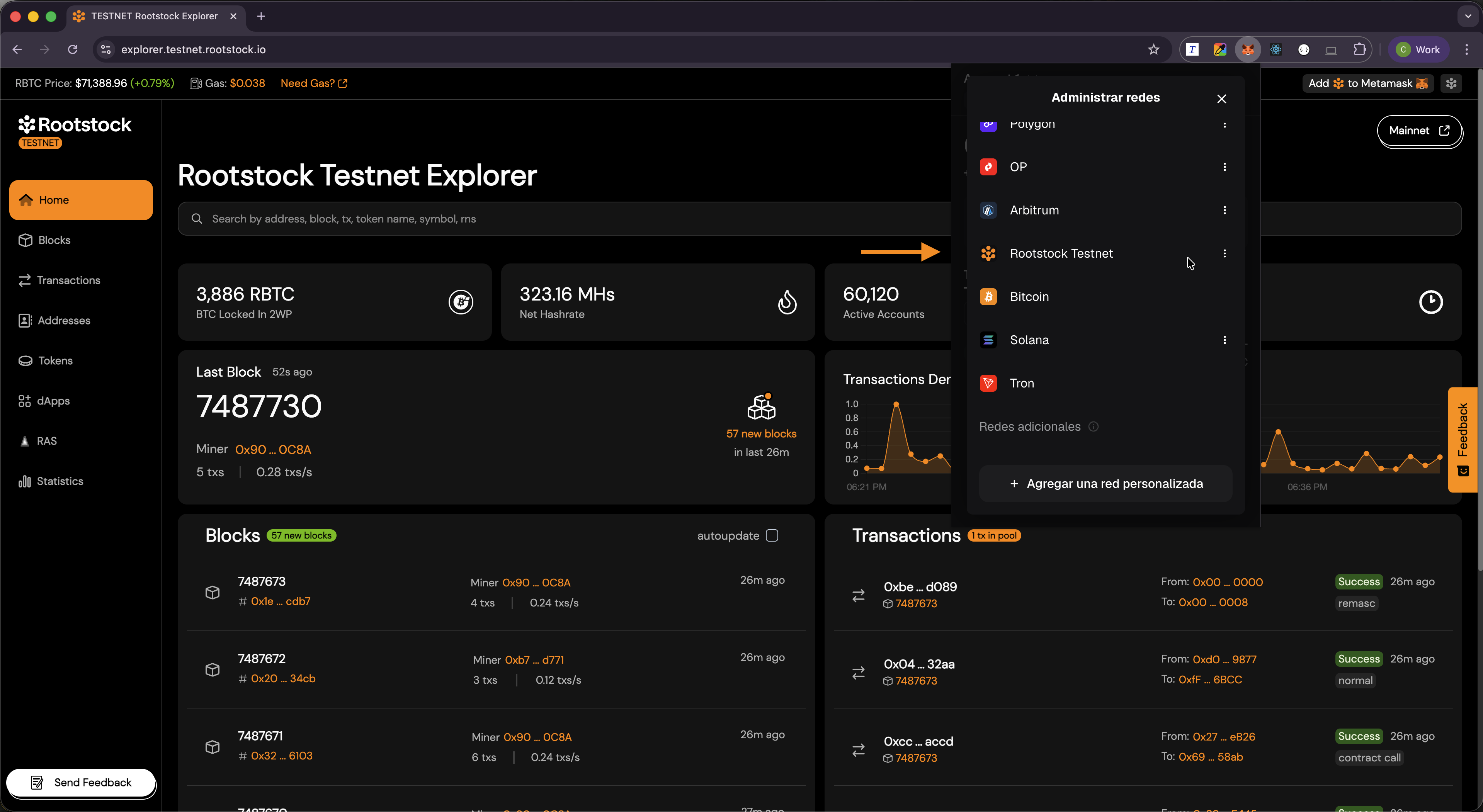
1. Open MetaMask.
2. Open the **network** menu at the top of the wallet.
3. Confirm **Rootstock** (Mainnet or Testnet) appears and is selected when you want to work on Rootstock.
You can now sign transactions and read balances for that network.
## What the Explorer Sends
**Add Rootstock to MetaMask** uses MetaMask’s API to propose a network with **chain ID**, **RPC URL**, **network name**, and **currency symbol** (RBTC). MetaMask then asks you to approve. You always confirm in MetaMask before anything changes.
## Troubleshooting
- MetaMask not detected: Ensure the MetaMask extension is installed and enabled in your browser.
- No prompt appears: Refresh the page and try again.
- Wrong network selected: Manually switch to Rootstock in MetaMask.